How to Set Up Three Broadband
Are you a new Three broadband customer and need to know how to get your broadband up and running quickly? Don’t worry! This support page will walk you through the simple steps to get you started.
What to expect in the box
When you purchase Three broadband, you'll receive a broadband device, charger and instruction manual in the box. Your SIM will be sent separately.
Instant connection with our self-install plans
No engineers, no drilling, no waiting around. Follow these three simple steps below to get started.
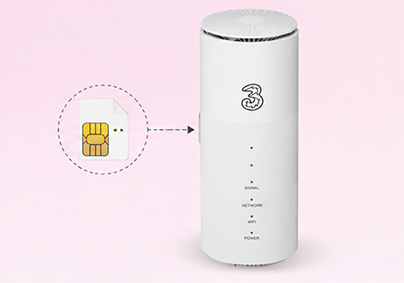
Insert your SIM card
Slide your Three SIM card into the slot on the back of your modem.
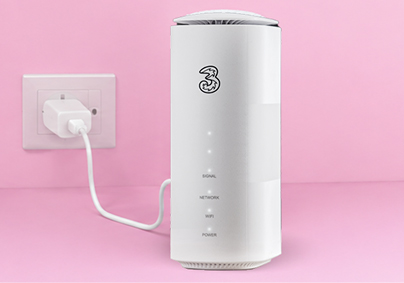
Plug in and connect
Plug your modem in. Use the Wi-Fi name and password on the bottom of the device to connect your phone or laptop.
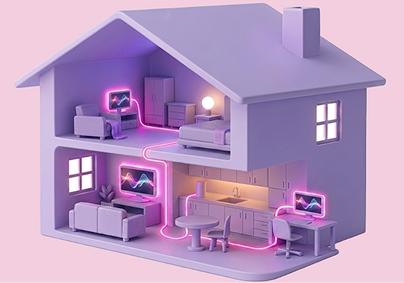
Test different locations
You’re all set! For the fastest speeds, try placing your hub near a window and test different spots to find the best one.
Check your connection is working
On your modem, you’ll see six lights representing: power, Wi-Fi, network and three lights for signal. The stronger the signal, the more signal lights will be on. Once your modem is up and running all lights will be on.
If there’s an issue with your connection, the lights on the front of your modem will help you to identify the problem.
Use the speed test to see what speed your connection is running at once connected.
If any of these lights switch off or change colour, please look at our support guide to discover what actions to take.
How to connect devices
- Once you’ve inserted your SIM card and powered up your modem, you’ll be able to connect with your Wi-Fi compatible devices (smartphone, tablet, laptop).
- To connect your device, open Settings > Wi-Fi > and select your device. The name and password of your broadband are printed on the bottom of your modem.
- The name and password of your modem can be changed to something more familiar and easier to remember. If you’d like some simple steps on how to do this, please visit our devices guide and select your device. There you’ll find a step-by-step guide in the settings section.
What to expect in the box
The first thing you need to know is what you’ll receive when you purchase Three broadband. In the box you’ll find;
- Broadband Device
- Charger
- Instruction Manual
You’ll receive your SIM separately.